

Every email sent from your business is a branding opportunity. A signature carrying your logo, your name, and a link back to your site turns a routine message into a small, consistent brand touchpoint—repeated dozens of times a day, in inboxes. It’s one of the simplest pieces of comprehensive branding to address, and most business owners let it sit unfinished simply because they’ve never thought to set it up.
Why an Email Signature Carries More Weight Than It Seems
A signature is a small, easily overlooked element, but its value comes from repetition rather than scale. A missing logo or an inconsistent format is a minor detail in isolation, yet it compounds quickly across a team, especially when different employees are signing off with different fonts, colors, or no visual identity at all.
A Reflection of the Larger System
A signature was never meant to carry your brand on its own, but it does need to match everything else your business puts into the world. If your website, your social presence, and your printed materials all read as intentional while your email signature looks like an afterthought, that inconsistency registers with recipients even when they can’t quite name why.
How to Change a Signature in Gmail
Before a logo can be added, it helps to understand how to change signatures in Gmail, a process that differs slightly depending on whether you’re working from desktop or mobile.
On Desktop
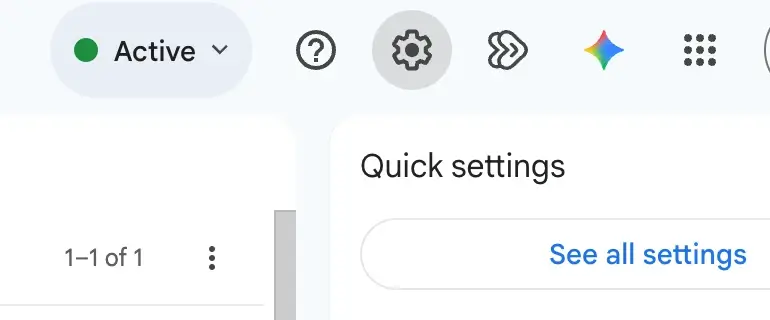
Open Gmail and select the gear icon in the top right corner, then choose “See all settings.”
On Mobile
The mobile app handles signatures with more limited formatting controls. From the Gmail app, open the menu, scroll to Settings, select the relevant account, and tap Mobile Signature. Text can be added directly here, though inserting an image typically requires setting the signature up on desktop first, since the account syncs across devices.
Placing Your Logo Inside the Signature
While text updates within a signature are straightforward, image-based updates need to be more strategic to ensure the signature looks and performs its best at all times.
In particular, the image files for your logo should be hosted on your website’s server and then embedded into the signature, rather than placed directly into it. Uploading the files directly into the editor often causes images to break or render incorrectly for recipients, whereas linking to a hosted image ensures it loads reliably over time. Additionally, the image must be lean and properly sized before it is uploaded to the server; an oversized, high-resolution logo slows load times for anyone viewing the email on a weaker connection, and it can distort the layout of the signature in some inboxes.
Once your logo is uploaded to your site’s server, copy its web link, open the desktop signature editor, and locate the image icon within the formatting toolbar. From there, select the “Web Address (URL)” option, and paste the link. Your logo will then be displayed within the signature.
For the best results, consider partnering with your brand designing company to properly update your signature. These professionals can size your logo files, host the image, and test the setup—taking the technical guesswork off your plate and ensuring your signature displays flawlessly over time.
Selecting the Right File Format
A PNG with a transparent background is the safer choice in nearly every case. It preserves a clean appearance regardless of the recipient’s inbox background, avoiding the boxy white rectangle that appears when a logo built on a solid background gets dropped into a signature field.
Getting the Proportions Right
A logo scaled too large overwhelms the rest of the signature and reads as unpolished. The mark should sit modestly alongside the text—roughly the height of two or three lines—so it functions as a signature element rather than a banner competing for attention.
Building a Signature Worth Repeating
With the logo positioned, add a name, title, and a phone number or website link beneath it. Keep the typography restrained and legible, and resist layering in multiple colors, icons, or taglines. A clean, disciplined signature reads as far more professional than a busy one, and it’s easier for an entire team to replicate consistently across dozens of accounts—especially when it’s created, tested, and implemented company-wide by design professionals.
If the logo itself feels dated or fails to hold up at a small scale, that’s a problem worth solving before building a signature around it. Working with a brand designing company on a professional logo design ensures the finished mark holds its integrity whether it’s printed on a sign or shrunk to fit beneath two lines of email text.
Frequently Asked Questions
How do I change my signature in Gmail?
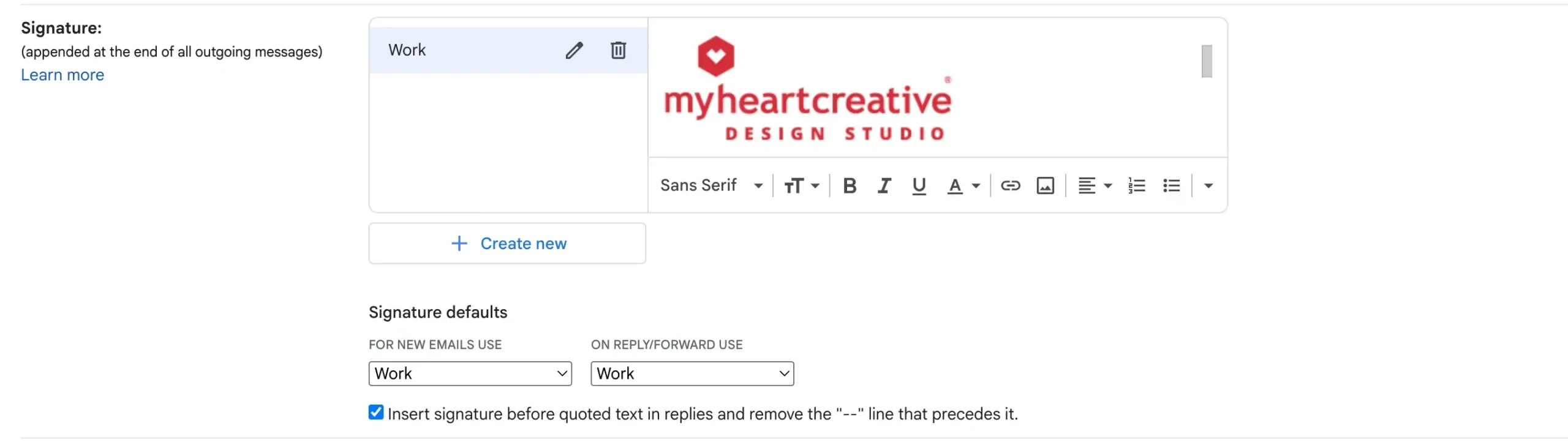
From Settings, accessed through the gear icon, navigate to the General tab and locate the Signature section. From there, a new signature can be created, an existing one edited, and separate defaults set for new emails versus replies and forwards.
Why isn’t my logo displaying correctly in Gmail?
This typically comes down to file format or size. Oversized image files can render poorly across certain email clients, and logos built on white backgrounds often appear boxy against darker inbox themes. A properly sized, transparent PNG that is hosted directly on your website’s server resolves most of these issues. Your brand designing company may be able to assist with this.
Can different signatures be set for different email addresses?
Yes. Within a single Gmail account managing multiple aliases, a distinct signature can be created for each address, with separate defaults configured for new messages and for replies or forwards.
Make Every Touchpoint Count With Comprehensive Branding
At myheartcreative, we design, develop, and implement comprehensive branding that holds together seamlessly across every touchpoint—from your website and logo down to the signature in every email sent by your team. Through our email signature design and setup services, we create custom signatures that render flawlessly across every inbox and reflect the true quality of your business.
If you are ready to elevate your visual identity and roll out a polished, professional email signature for your entire team, get in touch with our brand designing company.