

TL;DR: You can add a video in WordPress by embedding a hosted URL (the easiest, fastest-loading option) or by uploading a file directly, then previewing and publishing your changes. Embedding from YouTube or Vimeo is recommended over uploading whenever possible.
Before diving in, it helps to confirm your site is technically ready for video—something a WordPress web design team can check quickly. Videos are a great way to engage visitors and share information on your website. Whether you’re adding a product demonstration, testimonial, or promotional video, WordPress makes it simple. Follow the steps below to add a video to a page or post.
Step 1: Sign In to Your WordPress Website
Go to your WordPress login page and sign in using your username and password.
Step 2: Open the Page or Post
From the left-hand menu, select:
- Pages to edit a page.
- Posts to edit a blog post.
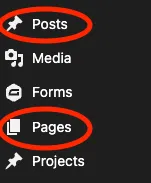
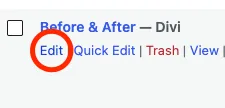
Find the page or post where you want to add the video and click Edit.
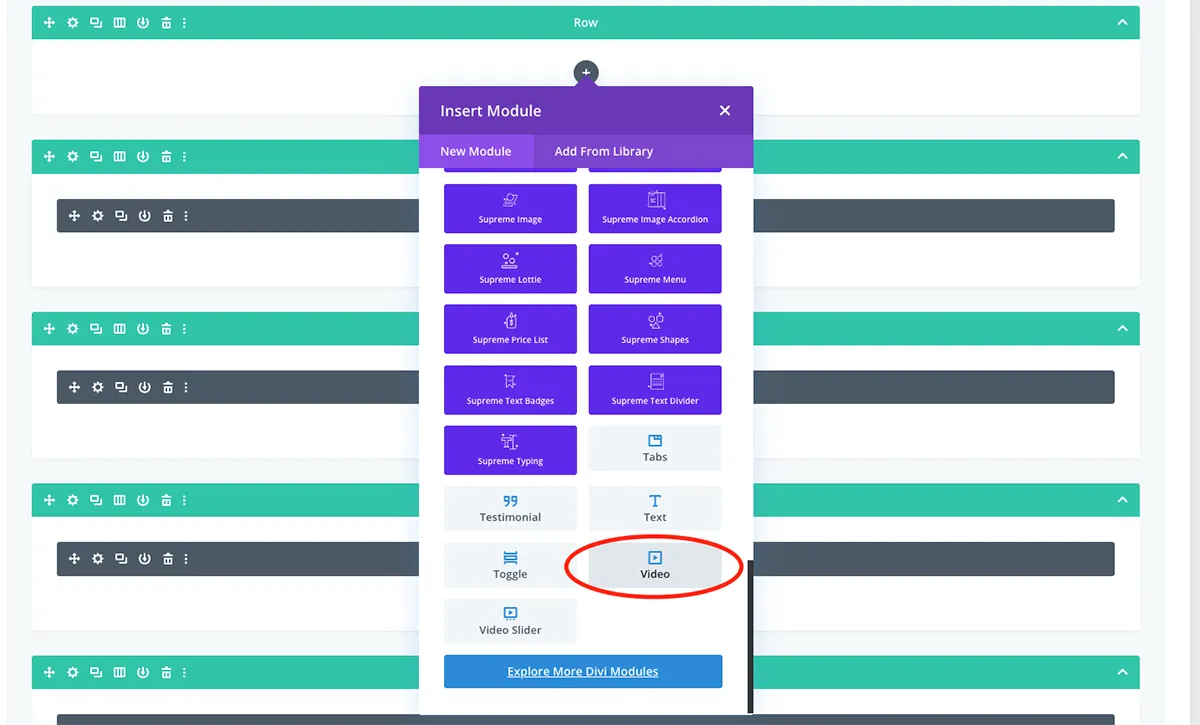
Step 3: Add a Video Block
Click the + (Add Block) button where you want the video to appear, search for “Video,” then insert the module.
Option 1: Embed a Video (Recommended)
If your video is hosted on YouTube or Vimeo:
- Copy the video URL.
- Add a Video block.

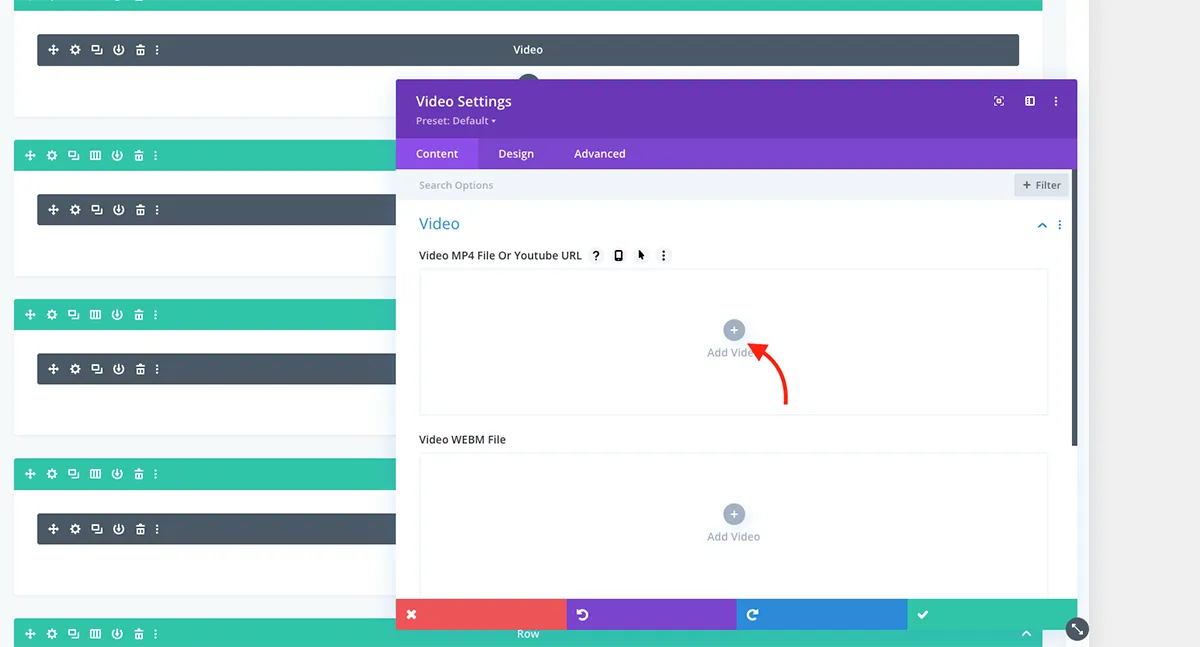
3. Select “Insert from URL”
4. Paste the video link into the block.
5. Click “Insert into post.”
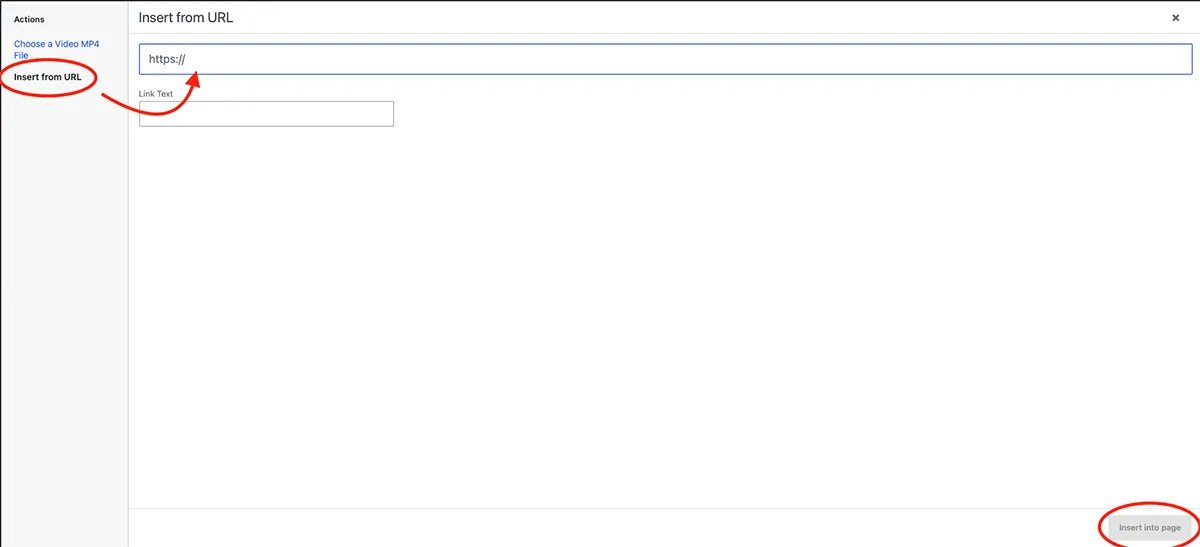

Your video will automatically appear on the page. If you don’t yet have a finished video to embed, a local video production partner can create one built specifically for web use.
Option 2: Upload a Video (Only if Necessary)
If you have a video stored on your computer:
- Add the Video block.
- Click Upload.
- Select your video file.
- Wait for the upload to finish.
- Click “Upload a video.”
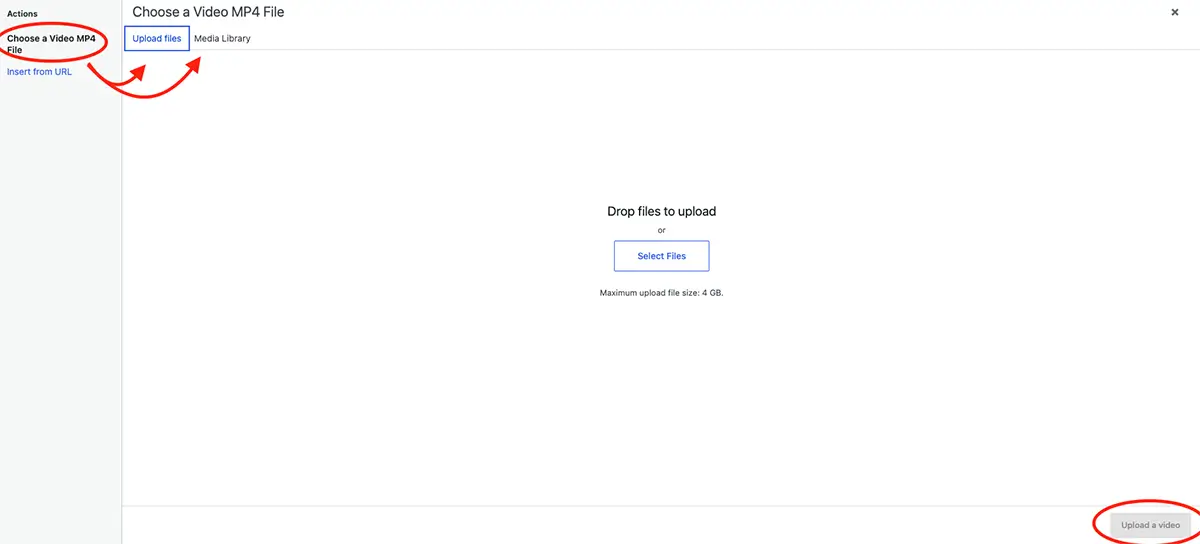
Tip: Large video files can slow down your website, so optimizing video size before uploading is worth the extra few minutes. Whenever possible, embed a video using its URL instead of uploading the video file directly to WordPress.
Caution: Most hosting providers require a special hosting package to accommodate video files, as direct uploads take up significant server space and may exceed your plan’s data storage limit. Always check with your website host to explore your options before uploading a video file directly.
Option 3: Quick Paste a Video (For Blog Posts)
If you’re adding a video to a blog post, you can quickly embed it by pasting the video URL directly into the content editor.
- Copy the video URL.
- Open your blog post in the WordPress editor.
- Place your cursor on a blank line where you want the video to appear.
4. Paste the video URL.
WordPress will automatically embed the video on your page. Once a video is live, small choices such as length, placement, and page context can have a significant impact on engagement.

Step 4: Preview Your Changes
Click Preview to make sure the video displays correctly and plays as expected.

Step 5: Save Your Changes
When you’re happy with the page, click Update or Publish to make your changes live.

Check Your Page
Visit the page on your website and confirm that:
- The video displays correctly.
- It plays without any issues.
- The video displays correctly on both desktop and mobile devices.
For more on how WordPress handles media files in general, see this guide on WordPress media uploads.
Frequently Asked Questions
Can I add a video without uploading it to WordPress?
Yes. Embedding a video from YouTube or Vimeo using its URL is the fastest method, and it keeps the video file off of your server entirely.
Will uploading a video slow down my website?
It can, especially with large files. Embedding from a hosted platform avoids this altogether, since the video plays from an external server rather than your own.
Can I add a video directly to a blog post without using the Video block?
Yes. Pasting a YouTube or Vimeo URL directly into the content editor, on its own line, will usually embed the video automatically.
Key Takeaways
- Embedding a video by URL (from YouTube or Vimeo) is the recommended method — it’s fast and doesn’t add file weight to your server.
- Uploading a video directly to WordPress works but requires enough hosting storage and can slow page speed if the file is large.
- Pasting a video URL directly into a blog post’s content editor will usually auto-embed it.
- Always preview a video before publishing to confirm it displays and plays correctly on desktop and mobile.
Ready to Build That Out?
At myheartcreative, we build and maintain WordPress websites that make adding rich media like video simple. Whether you need help maintaining an existing WordPress site or building a new one from the ground up, our team can help.